NJT Tax Return Demo - Version 3.1 released on 22nd August 2026
(This free software simulates the submission of Income Tax 'Quarterly Updates' and VAT Returns for individuals, businesses & agents,
it does not actually communicate with HMRC)
The free 'NJT Tax Return Demo' is a separate software product that simulates the live 'NJT Tax Return Manager' software product.
For information, before you can use the 'Live' software product, you first need to sign up to MTD.
This is because one the initial steps is to 'Give Permission' for the NJT software to submit Tax returns, using your HMRC Busines Tax account or HMRC Personal Tax account.
Consequently, it is difficult to obtain a practical understanding of how the 'Live' software works.
This is where the demonstration software may help to improve knowledge and awareness.
The demonstration software allows you to simulate the full 'End to End' MTD VAT process and simulate the Income Tax 'Quarterly Updates' process without being signed up to MTD.
This is a perfectly safe method to familiarise yourself with the functionality of the 'Live' software' without actually communicating with HMRC.
Additionally, you may wish to use this software to assist in training or to improve understanding of the required processes under MTD.
To use this software, you will need a valid VAT Registration Number (VRN) and/or a valid National Insurance Number (NINO).
Also the ability to create 'VAT returns' / 'Quarterly Updates' in any of the formats
supported by the software import process.
For information, you can also 'Reset' the demonstration software, by deleting or removing the back end database,
and repeat the processes as many times as you wish.
Restricted Functionality in Demo
- Allows you to select VAT and Income Tax 'Quarterly Update' licences only. I.e. Not Income Tax Year End.
- For Income Tax, the previous 'Tax Year' is used. Minimum 'Tax Year' is '2025-26'.
- Allows only 1 Income Tax 'Business Type' per Taxpayer. I.e 'Self Employment' or 'UK Property'
- Always displays a fixed Total Tax liability amount.
Please Note: The 'Demo' and 'Live' software are different products. If you wish to purchase the 'Live' software,
then click on the menu item 'Tax Return Manager' and follow the instructions within the 'Software Purchase'
section.
How to install the 'NJT Tax Return Demo'
[Click here] Before you install, it is recommended that you view the 'System Requirements' page.
-
Create New Folder
Always create a new folder on your local computer. For example, "C:\My Tax Returns".
You will later download the 'NJT Tax Return Demo' into this folder. This is known as the 'Front End' database or 'Front End' software.
When you first open the software, it creates a default 'Back End' database within the sub folder '/(Database)'.
If you wish, you may move this 'Back End' database to a different folder. For example, on an authentic Network Drive etc.
For information, OneDrive, Google Drive, DropBox etc. should not be used as they are 'File sharing' folders, not authentic Network Drives.
Tip: You may wish to create a shortcut on your Windows Desktop, which points to this local folder.
Note: The actual file name of the 'Front End' software will change when subsequent versions are released,
so the shortcut needs to point to the Folder and not the file.
-
Full Access Installation - Change Access Configuration (Options/Trust Centre)
If Microsoft Access is already installed on your computer as part of Microsoft Office, then apply the following configuration changes.
In order for the 'NJT Tax Return Demo' to function correctly, a few changes are required within the Access Options.
-
Open Access. Then click on 'Options' (Bottom left of screen), then click on 'Trust Centre' then click on 'Trust Centre Settings'
-
Trusted Locations: Add the 'Location' of the folder where you saved the Demo software,
(For example, "C:\My Tax Returns Demo"). Also tick the box 'Subfolders'.
-
ActiveX Settings: Select the round radio button 'Prompt me before enabling all controls with minimal restrictions'.
-
Macro Settings: Select the round radio button 'Disable all macros except digitally signed macros'.
-
Then, click on the 'OK' button.
-
Finally, Exit Access.
-
Microsoft 365 Access Runtime Version
If Microsoft Office is not installed on your computer then you can download the Microsoft 365 Access runtime version free of charge.
If your current Office installation does not include Microsoft Access then you can also download the Microsoft 365 Access runtime software free of charge.
In which case, Microsoft will attempt to download the corresponding version of the RunTime software. For example Office 2024 & Access Runtime 2024.
Important Note: The Runtime software must match the architecture of your Microsoft Office.
Example 1: If Office 64-bit is installed then you must download Access Runtime 64-bit.
Example 2: If Office 32-bit is installed then you must download Access Runtime 32-bit.
Click on the link below to download Microsoft Access 365 Runtime then continue at the next step.
Remember to select the 'English' language option from the dropdown menu.
[Click Here] to goto the Microsoft Access Runtime Download Page.
-
Add the NJT Website address to your list of Trusted Sites (Internet Options/Security/Trusted Sites/Sites)
Microsoft has taken a much tighter approach to software security when downloading software. In order for the 'NJT Tax Return Demo' to function correctly,
please add the NJT website address to the list of 'Trusted Sites' within your Windows 'Internet Options'.
Your Internet Options can be found via the 'Control Panel' or by typing "Internet Options" within your Windows search box.
Within your Internet Options:
- Click on the 'Security' tab.
- Click on the 'Trusted Sites' Zone.
- Click on the 'Sites' button.
- Type "https://neilsonjamestech.co.uk/" in the box. (Excluding the speech marks)
- Click on the 'Add' button.
- Also tick the box named 'Require server verification (https:) for all sites in the zone'.
- Then click 'Close' followed by 'OK'
-
Download Software to Folder
Microsoft has taken a much tighter approach to software security when downloading software.
The file that you download from the NJT website is 'NJT Tax Return Demo Vx.accdc', which is a 'Microsoft Access Signed Package' file.
Meaning it contains an official Digital signature verified by a trusted Certificate Authority (CA), namely, Sectigo.
You then extract the actual software by opening the package file, it is essentially a 2-step process.
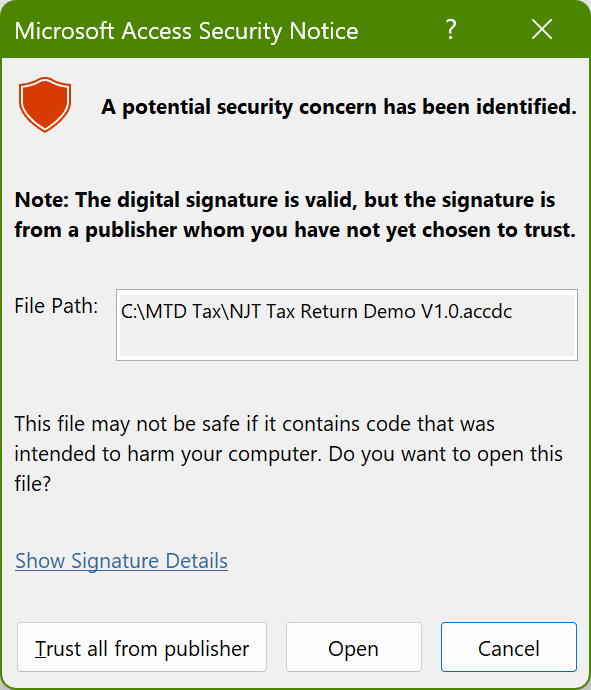 Download the Signed Package file (via the button below), then (move or save) it to the folder you have just created.
Once saved, open the file. It may display the 'Microsoft Access Security Notice' message. If so, just click on the 'Trust All from Publisher' button.
Note: prior clicking on the above button, you may 'Show the Signature Details'.
You will then be asked to save the extracted 'NJT Tax Return Demo Vx.accdb' file. Just save this file to the same folder.
Note 1: The download process may vary depending upon which Internet browser you use and the browser's configuration.
Note 2: It is important that you store the software within it's own folder
as certain sub folders are automatically created when the software is opened.
Click on the button to download the free demonstraion.
-
Open Software
Finally, Open the 'NJT Tax Return Demo Vx.accdb' software and follow the on-screen instructions.
You can then click on the 'User Guide' button located on the righthand side of the Dashboard form (window).
-
Free Remote Support from NJT
If you are having difficulties installing the software, then you can contact NJT and arrange for assistance via the 'Remote log-in' service.
- Contact NJT and arrange a time.
-
[Click Here] to download the 'Splash Top' SOS software.
-
Run the software, then telephone NJT and give the 9-digit code when requested.
-
NJT will then remotely access your computer.
-
When the remote access session is complete, disconnect then exit the software.